

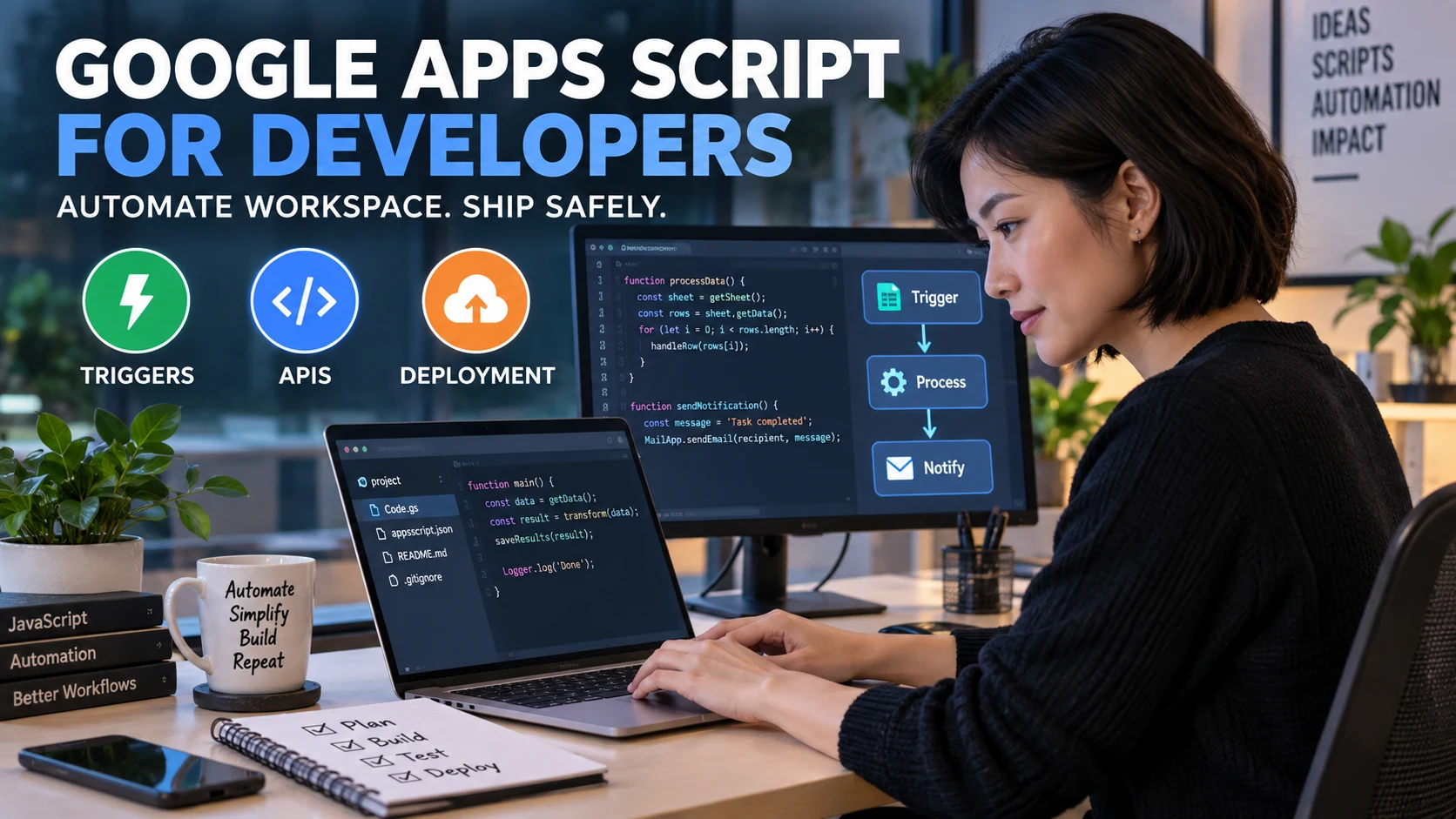

Google Apps Script is best treated as a server-side automation platform built around modern JavaScript, Google Workspace services, event-driven triggers, and managed deployments. The part that changes a developer’s workflow is not the syntax; it is the execution model, authorization, quotas, concurrency, and release process that surround the code.
That distinction matters because Apps Script now uses the V8 runtime, but V8 inside Apps Script is still not the same environment as Node.js or a browser. A strong workflow therefore separates ordinary JavaScript logic from Apps Script service calls, tests the boundaries that can fail in production, and uses versioned deployment and logging once a script becomes more than a personal one-off.
What Apps Script gives a developer
Google’s Apps Script overview describes a browser-based development platform that runs code on Google’s servers and provides built-in libraries for services such as Sheets, Gmail, Drive and Calendar. That makes it unusually effective for lightweight workflow automation because authentication to Google services, deployment infrastructure and much of the hosting burden are already handled by the platform.
The trade-off is control. Apps Script is optimized for short-lived, event-driven work inside the Google ecosystem, not for every workload that can be written in JavaScript. If a project depends on long-running processes, unrestricted Node packages, background workers, low-level networking, custom operating-system access or infrastructure-level tuning, a separate application platform may be a better fit.
| Project need | Apps Script fit | Developer implication |
|---|---|---|
| Automate Sheets, Docs, Drive, Gmail or Calendar | Strong | Built-in services reduce integration overhead. |
| React to form, edit or time-based events | Strong | Choose the correct trigger type and authorization model. |
| Build a small internal web app | Good | Design around HTML Service and deployment permissions. |
| High-volume or long-running backend processing | Conditional | Chunk work, persist state or move the heavy workload elsewhere. |
| Node.js package ecosystem with runtime APIs | Limited | Browser and Node globals are not automatically available. |
V8 gives modern JavaScript, not a Node.js server
The Apps Script V8 runtime supports modern ECMAScript syntax such as let, const, classes and arrow functions. That removes much of the historical need to transpile ordinary syntax before Apps Script can understand it.
The compatibility boundary still matters. Apps Script’s V8 environment does not provide many familiar browser and Node globals, including window, process, setTimeout and the browser fetch API; Apps Script uses its own services such as UrlFetchApp. A package that is “JavaScript” in npm may therefore depend on APIs that simply do not exist in Apps Script.
That is why the cleanest architecture keeps data transformation, validation and business rules in ordinary functions, while calls to SpreadsheetApp, DriveApp, GmailApp, UrlFetchApp and similar services stay in a thin integration layer. Pure functions are easier to test locally, and platform-specific failures become easier to isolate.
- Keep pure logic portable. Accept values and return values without reaching into a Google service inside every function.
- Wrap service calls. Put reads, writes, email sends and external requests behind small functions with clear inputs.
- Validate assumptions at the boundary. Check that a sheet, range, file ID or API response actually exists before using it.
- Log operation context. Include useful identifiers and step names without placing personal or secret data in logs.
Choose the development workflow that fits the project
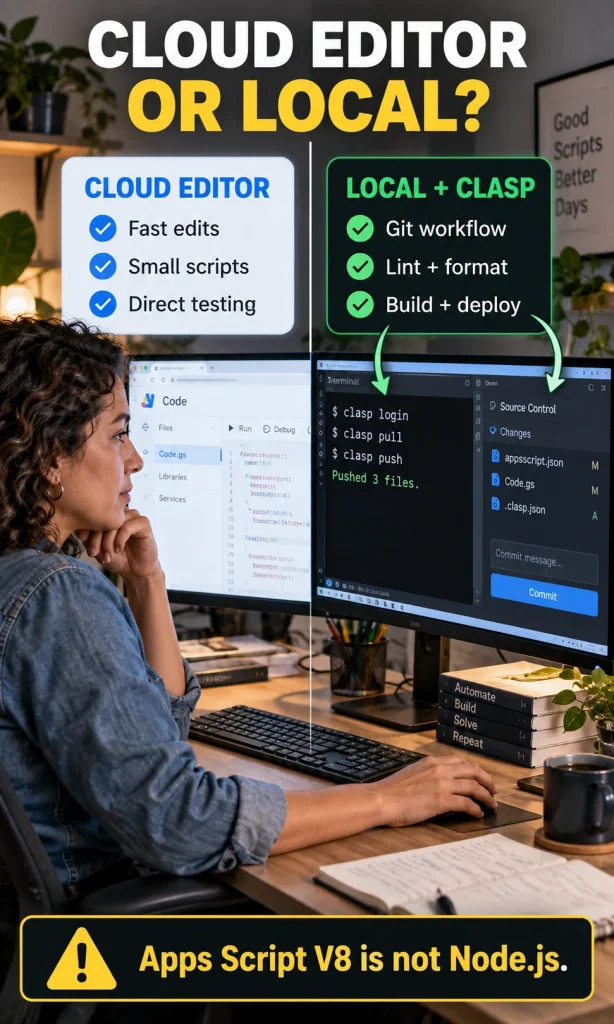
The cloud editor remains efficient for a short script that one person maintains, especially when the code is tightly coupled to one Sheet, Doc or Form. The moment a project needs code review, Git history, linting, repeatable deployments or more than a few coordinated files, local development with clasp becomes easier to control.
The current clasp project supports local source control and deployment workflows for Apps Script. Treat it as a development bridge to Apps Script rather than evidence that Apps Script itself has become Node.js; the local environment can use Node-based build tooling even when the deployed runtime cannot.
GOOGLE APPS SCRIPT
Build Readiness Studio
Turn a project description into a practical architecture brief for triggers, authorization, batching, concurrency, logging and deployment.
Your architecture brief
Use these as implementation checkpoints, not as a substitute for testing.
Development workflow
-
-
Trigger + authorization
-
-
Performance pattern
-
-
Concurrency
-
-
Observability
Execution log first; persistent logs for production
Log step names and non-sensitive operation identifiers. Use Cloud Logging when the workflow needs durable multi-user diagnostics.
Deployment
-
-
Starter pattern
Batch safely
Understand how execution actually starts
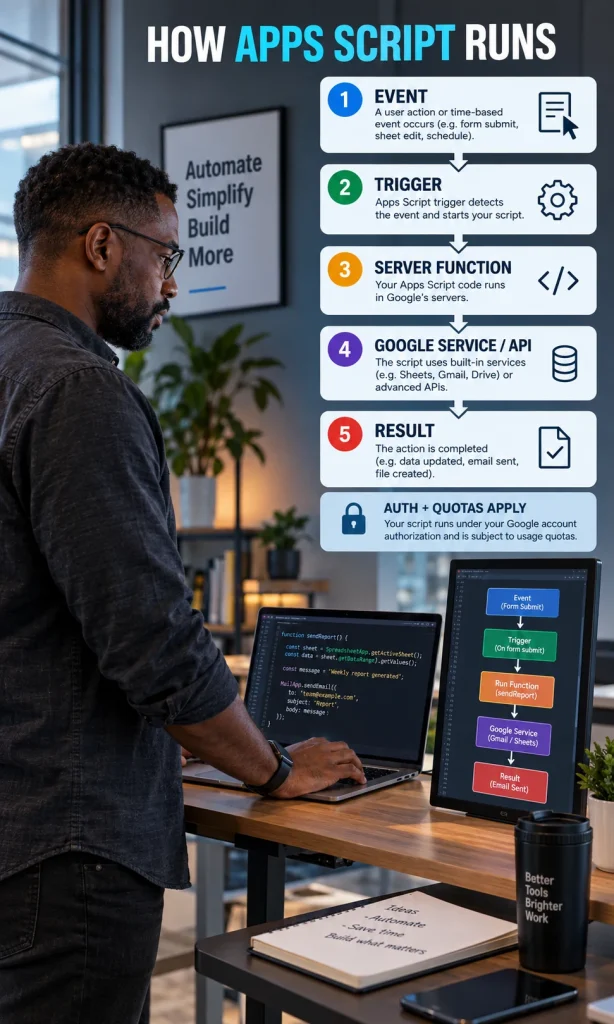
Every Apps Script project has an entry point into execution: a manual run, a trigger, a web request, a custom function, an add-on action or another supported invocation. That entry point determines which identity the script uses, whether authorization can be requested, what event data is available and which limits are likely to matter.
Simple triggers such as onOpen(e) and onEdit(e) are deliberately constrained because they run automatically without asking for authorization at execution time. If the workflow needs services that require authorization, an installable trigger or another execution model is usually the correct path.
Installable triggers can call authorized services, but they run under the account of the user who created the trigger. That detail is easy to overlook in team environments, because a script may behave correctly for the creator while depending on their permissions, quota or account lifecycle.
Authorization should be designed, not discovered at the end
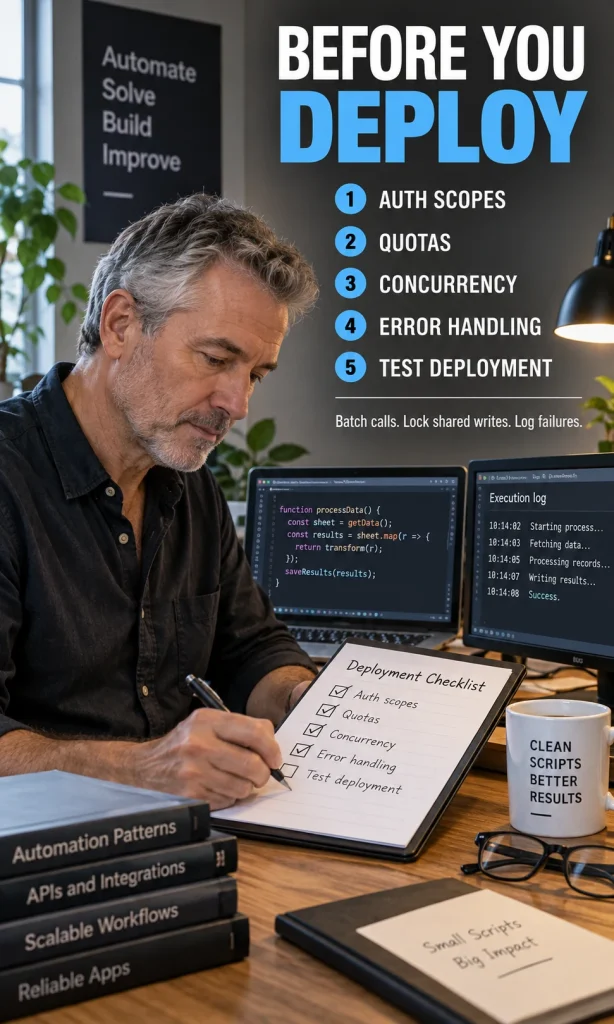
Apps Script scans code to determine which OAuth scopes a project needs. Google’s authorization guidance recommends explicit scopes for published projects when tighter control is required, and the user identity under which the script runs changes according to how the script is invoked.
Keep the permission surface as small as the job allows. A script that only needs the current document should not casually broaden itself into account-wide file access, and a published app using sensitive scopes may face additional verification requirements. Scope changes also deserve regression testing because adding a new service can create a new authorization step for existing users.
Quotas turn architecture choices into reliability choices
Apps Script has execution and service quotas, and Google’s quota documentation explicitly notes that limits can change. The practical rule is to design so that one user action does not create hundreds or thousands of avoidable service calls.
For spreadsheet-heavy work, read a block of values once, process it in JavaScript, and write results back in batches instead of calling getValue() and setValue() inside a large loop. Google’s Apps Script performance guidance makes the same point: minimizing external service calls and batching reads and writes is one of the most effective ways to improve performance.
| Failure pattern | Better pattern | Why it helps |
|---|---|---|
| Read/write one cell per loop iteration | Read arrays, transform in memory, write arrays | Fewer service round trips |
| One giant execution | Chunk work and persist progress | More resilient to runtime limits |
| Repeatedly fetch unchanged configuration | Use properties or cache where appropriate | Avoids unnecessary lookups |
| Assume only one execution writes at a time | Use locking around shared writes | Reduces collisions and duplicates |
Protect shared state from overlapping executions
Triggers and web apps can overlap. If two executions both read the same “next ID,” increment it and write it back, you can produce duplicate IDs even if the function is correct in isolation. LockService exists specifically to serialize critical sections that touch shared resources.
function reserveNextId() {
  const lock = LockService.getScriptLock();
  if (!lock.tryLock(5000)) {
    throw new Error('Busy. Try again.');
  }

  try {
    const props = PropertiesService.getScriptProperties();
    const next = Number(props.getProperty('nextId') || '1');
    props.setProperty('nextId', String(next + 1));
    return next;
  } finally {
    lock.releaseLock();
  }
}
Locks should guard only the smallest section that truly needs exclusivity. A long network request inside a lock can turn one slow external service into a bottleneck for every other execution waiting behind it.
Store state deliberately
Properties are useful for small configuration values, checkpoints and user- or script-level state. They are not a replacement for a database, but they are a practical way to remember the last processed row, a continuation token or an internal feature switch between executions.
If the script needs to process a large queue, store a checkpoint after each completed chunk, schedule the next chunk, and make the operation idempotent so rerunning a partially completed step does not create duplicate work. That pattern is more reliable than assuming every execution will finish in one pass.
- Checkpoint after completed work, not before it. A restart should resume after the last confirmed item.
- Prefer deterministic keys. If the same record is processed twice, the second pass should update or no-op instead of duplicating output.
- Separate retryable from permanent errors. A temporary API timeout is different from a malformed email address.
- Keep secrets out of source code. Treat project configuration and credentials as controlled data.
Build HTML Service interfaces as asynchronous applications
For web apps, dialogs and sidebars, the browser-facing page and the Apps Script server are two different execution environments. The google.script.run API calls server-side functions asynchronously, so the client should use success and failure handlers instead of assuming a server result is available on the next line.
That asynchronous boundary is useful: it keeps the interface responsive and makes failure handling explicit. It also means you should disable repeated submissions while an action is running, show a useful progress state, and treat multiple in-flight requests as a concurrency problem rather than a UI detail.
Logging should answer what happened, where and to which operation
Apps Script logging provides the execution log for immediate debugging and Cloud Logging for longer-lived production diagnostics. Production logs should contain enough context to reconstruct a failure without exposing unnecessary personal data or secrets.
A useful log line identifies the workflow step, a non-sensitive correlation or record key, the outcome and the error class. "Failed" is rarely enough; "invoice export failed after Drive write, record INV-1048, temporary service error" gives a maintainer somewhere to start.
Deployments should separate testing from production
Apps Script distinguishes the current head code from versioned deployments. Google's deployment documentation recommends using versioned deployments for public use so users stay on a known code version while development continues.
That makes the release workflow straightforward: test the current code, create a version, point the deployment at that version, verify the live behavior, and keep enough logging to diagnose the release. If ownership, scopes or the linked Cloud project change, retest the deployment path rather than assuming the script's runtime behavior is unchanged.
A practical Apps Script development sequence
- Define the trigger and identity first. Decide what starts the script and whose authorization it will use.
- Write the pure logic separately. Keep transformation and validation independent from Google service calls where possible.
- Batch reads and writes. Minimize service round trips before optimizing anything more exotic.
- Design for quotas and retries. Chunk large jobs and persist enough state to resume safely.
- Add concurrency protection. Lock only shared critical sections and make repeated work idempotent.
- Log meaningful context. Use structured messages that make production failures traceable.
- Use the right development surface. Stay in the cloud editor for simple personal work; use local tooling when source control and repeatability justify it.
- Release a version, not a moving target. Keep test code and production deployments separate.
This same workflow applies whether the script sends a scheduled spreadsheet report, powers a small internal web app or connects several Workspace services. If the project is starting from a Sheets-centered automation, the related guides on emailing spreadsheets on a recurring schedule and tracking form data in Google Sheets are useful examples of narrower jobs that Apps Script can own.
Google Apps Script FAQ
Is Google Apps Script the same as Node.js?
No. Apps Script uses the V8 JavaScript engine, but its runtime exposes Apps Script services and omits many browser and Node.js APIs. Code that depends on Node globals, browser APIs or native modules may need to be rewritten or kept outside Apps Script.
Do I still need Babel or Webpack for Apps Script?
Not for ordinary modern JavaScript syntax supported by the Apps Script V8 runtime. A bundler can still be useful when you want modules, TypeScript, code splitting during development, or a local build process, but it is a workflow choice rather than a basic runtime requirement.
When should I use clasp?
Use clasp when local development, Git, linting, repeatable pushes, deployment management or team review materially improve the project. A tiny personal script can remain simpler in the browser editor.
Why does an Apps Script trigger fail with an authorization error?
Simple triggers cannot use services that require authorization, and installable triggers need their creator to authorize the required services. Adding a new service can also introduce a new scope that must be authorized before the automated execution can use it.
How should I handle large Apps Script jobs?
Batch service calls, process work in chunks, store progress, make operations safe to retry and schedule another execution when necessary. If the workload fundamentally needs long-running workers or high-throughput processing, move that portion to a platform designed for it.
Decision summary
Apps Script is strongest when the problem is close to Google Workspace and the workflow can be expressed as short, observable server-side actions. Build around the platform's real boundaries - execution entry point, authorization, quotas, shared state, asynchronous UI calls and versioned deployment - and the code stays maintainable long after the first successful run.