

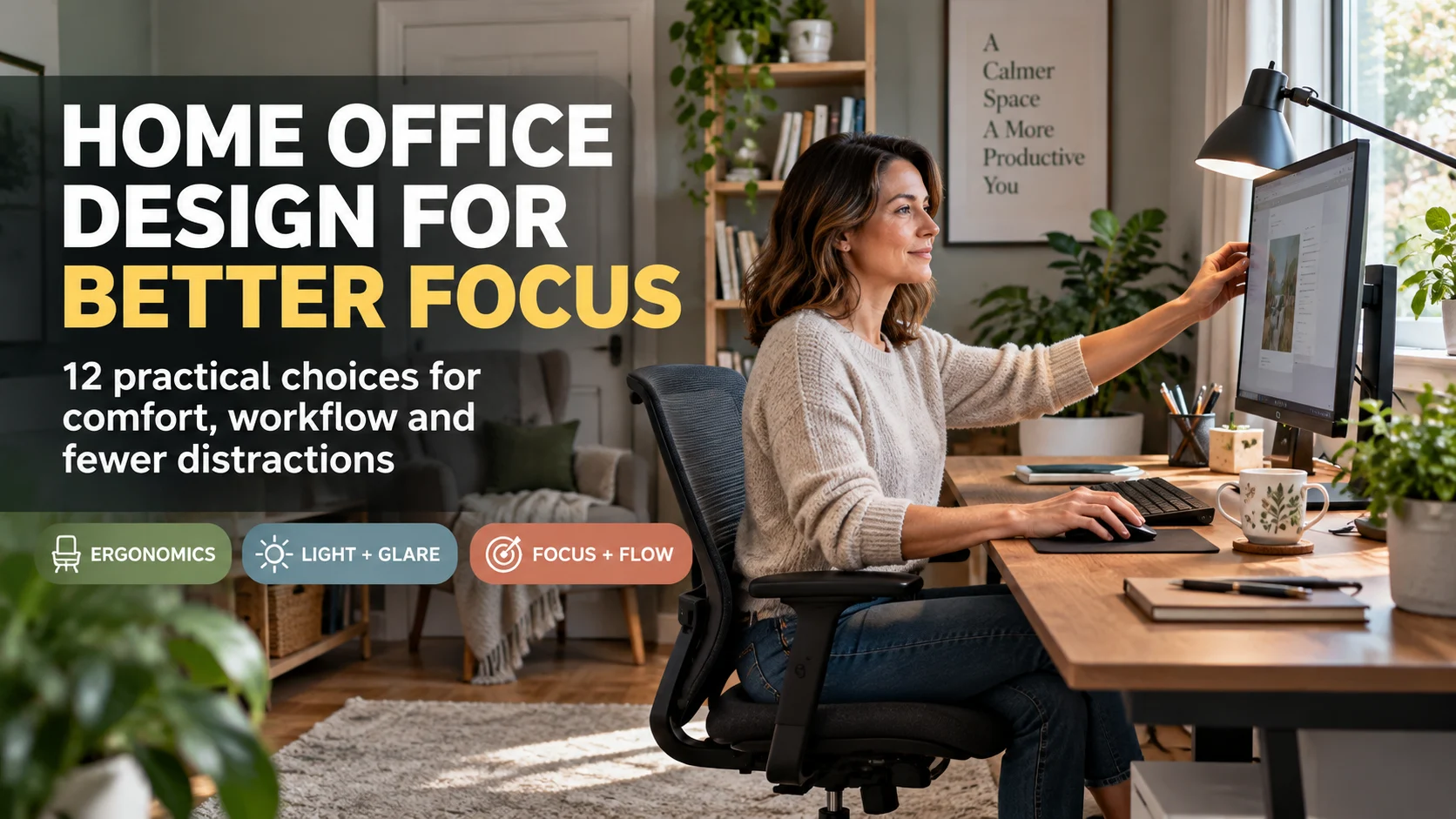

A productive home office does not need to be large or expensive; it needs to remove the physical and visual friction that makes work harder. Start with the location, chair-desk-screen relationship, glare control and distraction level before spending money on decorative upgrades, because those choices affect comfort and concentration throughout the day.
The biggest mistake is treating the room as a shopping list. A premium chair cannot fix a monitor that is too high, a beautiful desk cannot fix direct window glare, and extra storage will not help if the things you reach for every hour are still outside the primary work zone.
Before changing anything, identify the problem you notice most often during a normal workday. Use that problem to decide which of the following changes deserves attention first, then build the rest of the room around it.
- Neck, shoulder or wrist discomfort: fix chair height, desk height, monitor position and input-device reach as one system.
- Glare or visual fatigue: correct the screen-to-window relationship before buying brighter lamps.
- Household interruptions: improve location, acoustics and visual boundaries before adding more furniture.
- Clutter: separate active work from stored work, then give frequently used items the easiest reach.
- Difficulty switching off: create a visible end-of-day reset so the workspace stops occupying the room mentally and physically.
1. Choose the location by friction, not by room size
A quiet corner can outperform a larger room if the larger room sits on the main household traffic path. Look first at interruptions, noise, daylight direction, available wall depth, power access and whether the desk can stay set up between work sessions.
If the office shares a bedroom or living room, create a clear boundary instead of pretending it is a separate room. A shelving unit, rug, curtain, change in wall treatment or a consistent desk orientation can make the work zone visually legible without consuming much floor area.
2. Fit the chair, desk and screen as one system
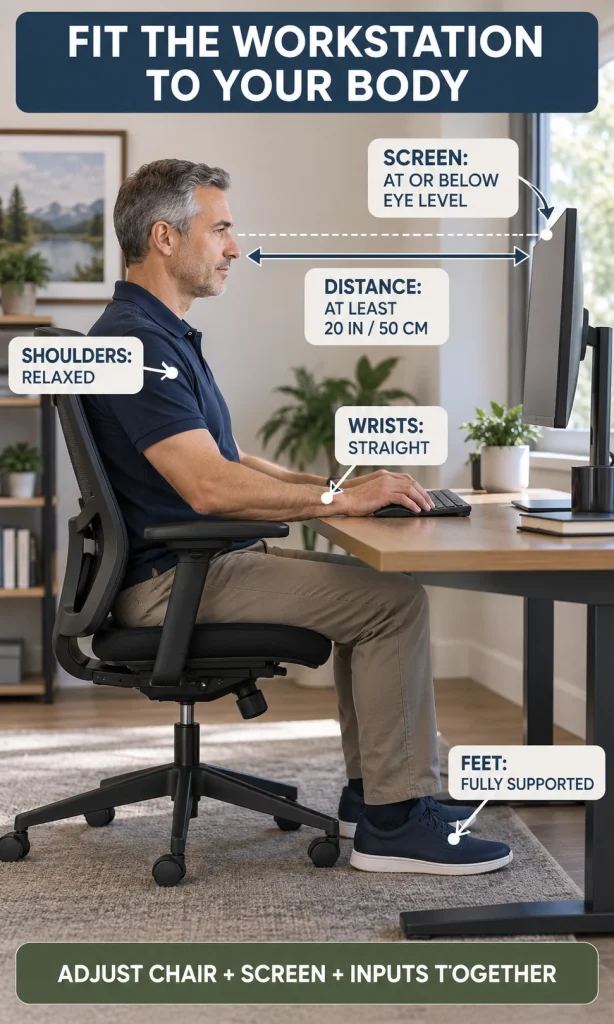
Do not buy the chair, desk and monitor independently and hope they line up later. The useful relationship is simple: the chair should support you, the desk should let your elbows and forearms work without shrugging or reaching, and the screen should sit where you can read it without leaning or tilting your head.
As a practical ergonomic reference, OSHA’s computer-workstation guidance recommends placing the monitor directly in front of the user, generally 20 to 40 inches (50 to 100 cm) away, with the top line of the screen at or slightly below eye level. Treat those measurements as a starting range, then adjust text size, display distance and chair position so you can read comfortably while keeping your back supported.
3. If a laptop is your main computer, separate the screen from the inputs
A laptop forces a compromise because the screen and keyboard are physically attached. For short sessions that may be acceptable, but for longer desk work a raised laptop or external monitor paired with a separate keyboard and mouse lets you place the display for your eyes and the inputs for your hands.
NIOSH’s home-work ergonomics guidance also recommends neutral wrist positions, supported feet and regular changes in posture. If you cannot change the equipment immediately, increase text size, bring the work closer to neutral posture and break long sessions into shorter blocks rather than forcing yourself to hold one compromised position for hours.
4. Put daylight beside the screen, not directly in front of or behind it
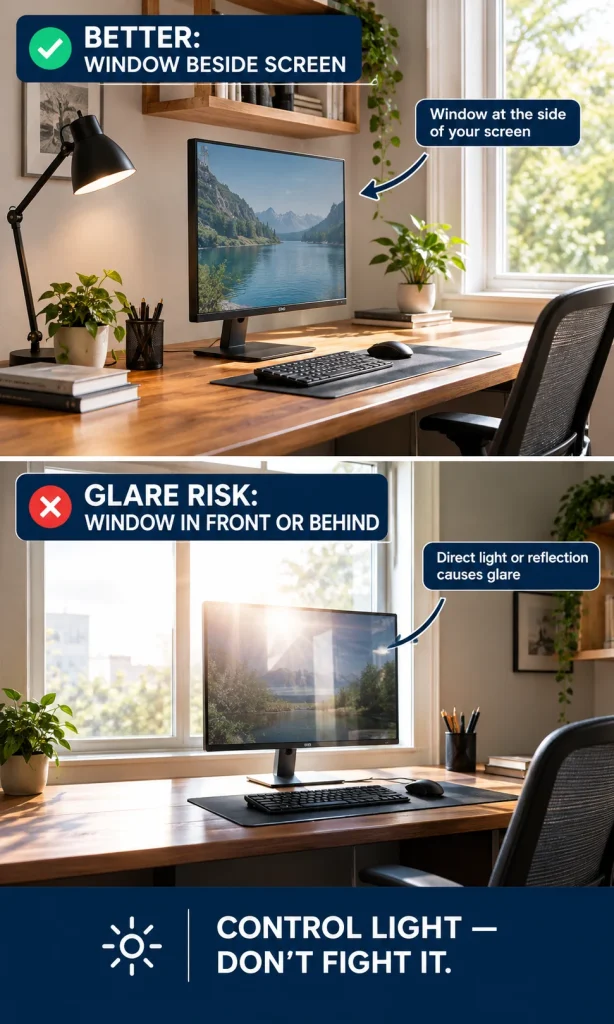
Natural light is useful only when it does not create glare, harsh contrast or reflected hot spots on the display. Positioning the face of the screen roughly at a right angle to the window usually gives you daylight from the side while reducing direct reflection.
When the room layout prevents that orientation, use blinds, curtains or another controllable layer to manage the brightest part of the day. A desk lamp should illuminate the work surface without throwing light back into the display, and matte surfaces are easier to manage than glossy desks or polished accessories.
5. Layer ambient and task lighting instead of relying on one bright source
A single overhead fitting often asks one lamp to do several jobs badly. Use softer ambient light for the room and a directional task lamp for paper, sketching or detailed work, then adjust screen brightness so the display does not feel like a glowing rectangle in a dark room.
The exact lamp colour and brightness are less important than control. You should be able to direct light away from the screen, reduce strong contrast at night and adapt the room when daylight changes without rebuilding the setup.
6. Keep the primary work zone within easy reach
The most-used objects belong closest to your normal working position. Keyboard, mouse, notebook, phone dock and the one or two tools you use repeatedly should sit where you can reach them without twisting, leaning or clearing clutter first.
Move low-frequency items out of that zone. Printers, archives, spare stationery and cables can live in secondary storage, because the goal is not an empty desk; it is a desk where active work has priority over stored possessions.
| Problem you notice | First change to test | What to avoid buying first |
|---|---|---|
| Neck or shoulder fatigue | Recheck chair, monitor height and viewing distance | Decor, storage or a larger monitor |
| Glare or squinting | Rotate screen relative to window and control daylight | A brighter task lamp |
| Constant interruptions | Change location, add a boundary or reduce noise transmission | More desktop accessories |
| Desk always feels crowded | Separate active-work items from stored items | A bigger desk before fixing storage logic |
7. Use closed storage for visual noise and open storage for active work
Open shelves are useful when you need to see and reach something often; they become distracting when they turn into long-term storage for every cable, document and supply. A good home office usually needs both visible access and concealed storage rather than one storage type everywhere.
Keep projects that are currently active visible enough to resume quickly, then close away archives and backup supplies. This makes cleanup faster and reduces the chance that the desk slowly becomes a staging area for unrelated household items.
8. Design separately for concentration and calls
Deep work and video calls ask different things of a room. Concentration benefits from fewer interruptions and a visually quiet field of view, while calls also need acceptable sound, a stable camera position and a background that does not require a complete room reset before every meeting.
If calls are frequent, solve echo and privacy before buying decorative panels. Soft furnishings, curtains, rugs, upholstered seating and strategic door positioning can help tame a hard room, while a headset or microphone placed closer to you often improves intelligibility more efficiently than trying to acoustically treat the entire space.
9. Build a focus boundary that also has an off switch
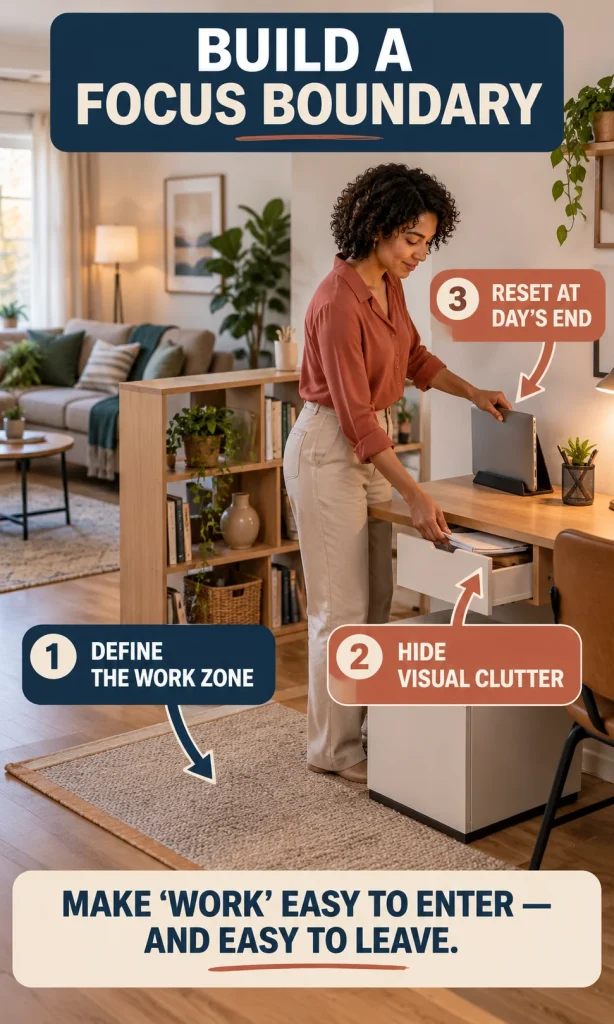
A home office works better when it is easy to recognize when work begins and when work ends. In a dedicated room that boundary may be a door; in a shared room it can be a rug, bookcase, folding screen or a desk that closes down visually after work.
Create a short shutdown routine that returns the surface to a neutral state. Put loose papers away, close the laptop or turn off the display, return the chair and remove anything that belongs elsewhere in the home so tomorrow’s start does not begin with cleanup.
10. Plan power and cables before adding more technology
Technology becomes a productivity feature only when it reduces steps. Put charging, power and data where the equipment actually sits, leave service loops for movable monitors or sit-stand desks, and keep cables away from leg space and chair wheels.
Do not add a printer, speaker, second monitor or smart device just because the desk can hold it. Each item should earn its place by supporting a repeated task; otherwise it consumes reach space, power and visual attention without improving the work.
11. Personalize the room without sacrificing working surface
Artwork, colour, plants and meaningful objects can make the office feel more like a deliberate room and less like spare furniture pushed into a corner. The useful test is whether personalization improves the atmosphere without narrowing the task area, blocking light controls or creating another surface that needs constant maintenance.
If you like plants, choose them for scale, light tolerance and maintenance rather than treating them as an air-cleaning system. One well-placed plant or artwork can give the room character without turning the desk into a display shelf.
12. Review the office after real work, not immediately after setup
The first arrangement is a hypothesis. After several normal workdays, notice where you lean, what you keep moving, which light becomes annoying in the afternoon, where cables catch, which background appears on calls and which items never get used.
Adjust the room from those observations before buying more. A small monitor move, a different lamp angle, a foot support, a drawer insert or moving one shelf may solve the real problem more effectively than a complete redesign.
Where should you spend first?
Spend first where a problem repeats most often. For long computer sessions, ergonomic fit and glare control usually deserve attention before styling; for a shared room, location, noise and a strong work boundary may matter more than premium furniture.
If you are planning a wider renovation, keep the office changes proportionate to the rest of the property rather than assuming every upgrade adds equal value. The same decision-first logic applies to broader projects such as 10 best home improvements to increase value: solve the use problem first, then decide how much finish and specification the space actually needs.
Use the Focus Space Studio before you buy anything
The interactive experience below turns your room type, work pattern and biggest source of friction into a short priority list. It does not produce a fake productivity score; it helps you decide which adjustment deserves to happen first, which can wait and what should be checked before you spend money.
Workstation decision support
Focus Space
Studio
Turn your room, work pattern and biggest source of friction into a practical first-fix list - without a fake productivity score.
Your three priorities
Universal workstation checks
- Screen directly in front of you, with the top line at or below eye level.
- Comfortable viewing distance; about 20-40 in / 50-100 cm is a useful reference range for many desktop setups.
- Shoulders relaxed, wrists near neutral, feet and lower back supported.
- Control strong reflections and direct daylight before increasing lamp brightness.
This experience provides general workspace decision support. Adjust recommendations for your body, equipment, vision needs and room constraints.
Frequently Asked Questions
Do I need a separate room for a productive home office?
No. A quiet, repeatable corner can work well if you can control interruptions, glare, equipment position and end-of-day clutter. A dedicated room mainly gives you stronger acoustic and visual separation.
What should I upgrade first: the chair or the desk?
Choose based on the actual fit problem. If the chair cannot support you or place your feet and arms comfortably, start there; if the desk height or depth prevents correct monitor and input placement, the desk may be the limiting component.
Where should a desk sit relative to a window?
For computer work, a side-window arrangement is usually easier to control than having a bright window directly in front of or behind the display. Use blinds or curtains when daylight changes enough to create glare or strong contrast.
Can I use a laptop all day without an external monitor?
You can, but the attached screen and keyboard make it difficult to optimize screen height and hand position at the same time. For long sessions, raising the display and adding a separate keyboard and mouse is often a more flexible setup.
Do plants improve home-office air quality?
Houseplants can make a workspace feel more pleasant, but they should not be relied on as a substitute for ventilation or air-quality control. Choose them for appearance, scale and the light conditions you can actually provide.
Action checklist
- Move or rotate the desk before buying new furniture if the location creates interruptions or glare.
- Adjust the chair, desk, screen, keyboard and mouse as one system.
- Keep the main screen in front of you and at a comfortable viewing distance.
- Use the window from the side where possible and control direct light.
- Keep active tools close; move archives and occasional equipment out of the primary work zone.
- Create a clear focus boundary and a short end-of-day reset.
- Review the setup after real work and fix the repeated problem before adding more equipment.