

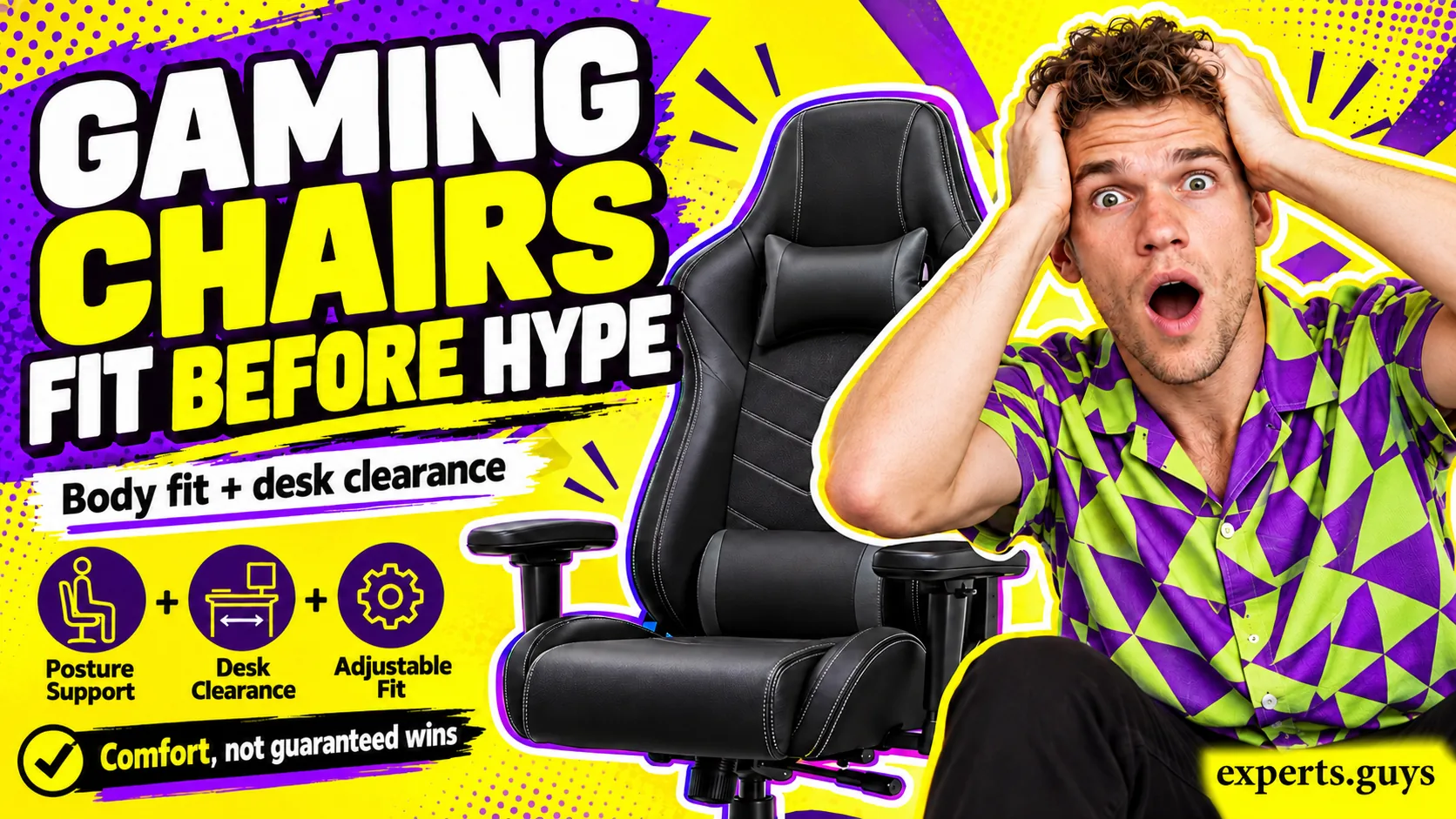
Top rated gaming chairs are worth shortlisting only when their seat, backrest and adjustments fit your body and your actual controls. A chair may make play more comfortable, but neither a high rating nor a racing shape guarantees better aim, reactions or results. Start by checking whether you can sit back, support your feet and reach your controls without strain.
The most useful upgrade is the one that removes a specific mismatch. If your existing chair already passes those checks, a new chair may offer a different finish or feel without solving a meaningful problem.
Which top rated gaming chairs belong on your shortlist?
Compare a few designs against your hardest fit requirement before comparing extras. A seat-depth adjustment matters more than a branded cushion when the front edge presses behind your knees; movable arm pads matter more than a large recline angle when the arms block your desk.
The four options below are a specification-based starting shortlist, not a lab-tested ranking. Manufacturer documents establish the adjustments described; they cannot tell you which seat will feel comfortable to you. This guide has not independently tested these chairs or measured gaming performance.
An ergonomic office chair belongs in the same comparison as a gaming chair. Both must solve the same support and reach problems, while a floor rocker has a different height and use case. A rocker that suits television play may be unsuitable for a keyboard on a standard desk.
Choose the exact model, size and seller before checking terms. Similar product names can conceal different lumbar systems, armrests and adjustment ranges, and a warranty does not automatically mean you can return a chair that feels wrong.
| Shortlist option | Why consider it | What could rule it out |
|---|---|---|
| Secretlab TITAN Evo | Multiple sizes; adjustable lumbar support and movable arm pads make it a candidate for people wanting a gaming-style chair. | The chosen size still needs usable seat room and the right height. A larger size is not automatically a better fit. |
| Razer Iskur V2 NewGen | Adjustable lumbar support and 4D armrests offer several ways to change contact and reach. | Try its lumbar shape and usable seat area. More directions of adjustment do not guarantee that the available range suits you. |
| Herman Miller Embody Gaming | Adjustable seat depth, BackFit and tilt controls make it worth comparing when a fixed-depth seat does not fit. | Its backrest feel and arm adjustment still need a trial. Treat its premium positioning as a reason to verify fit carefully. |
| Steelcase Gesture | An office-chair alternative with adjustable seat depth and highly movable arms for a shared work-and-play desk. | Its arm range must work with your desk apron and mouse movement. Choose the configuration and finish you actually intend to buy. |
There is no universal winner here. The shortlist deliberately compares mechanisms rather than assigning star scores that would imply testing. Local availability, delivered cost, assembly conditions and return charges can change which option is worth a trial.
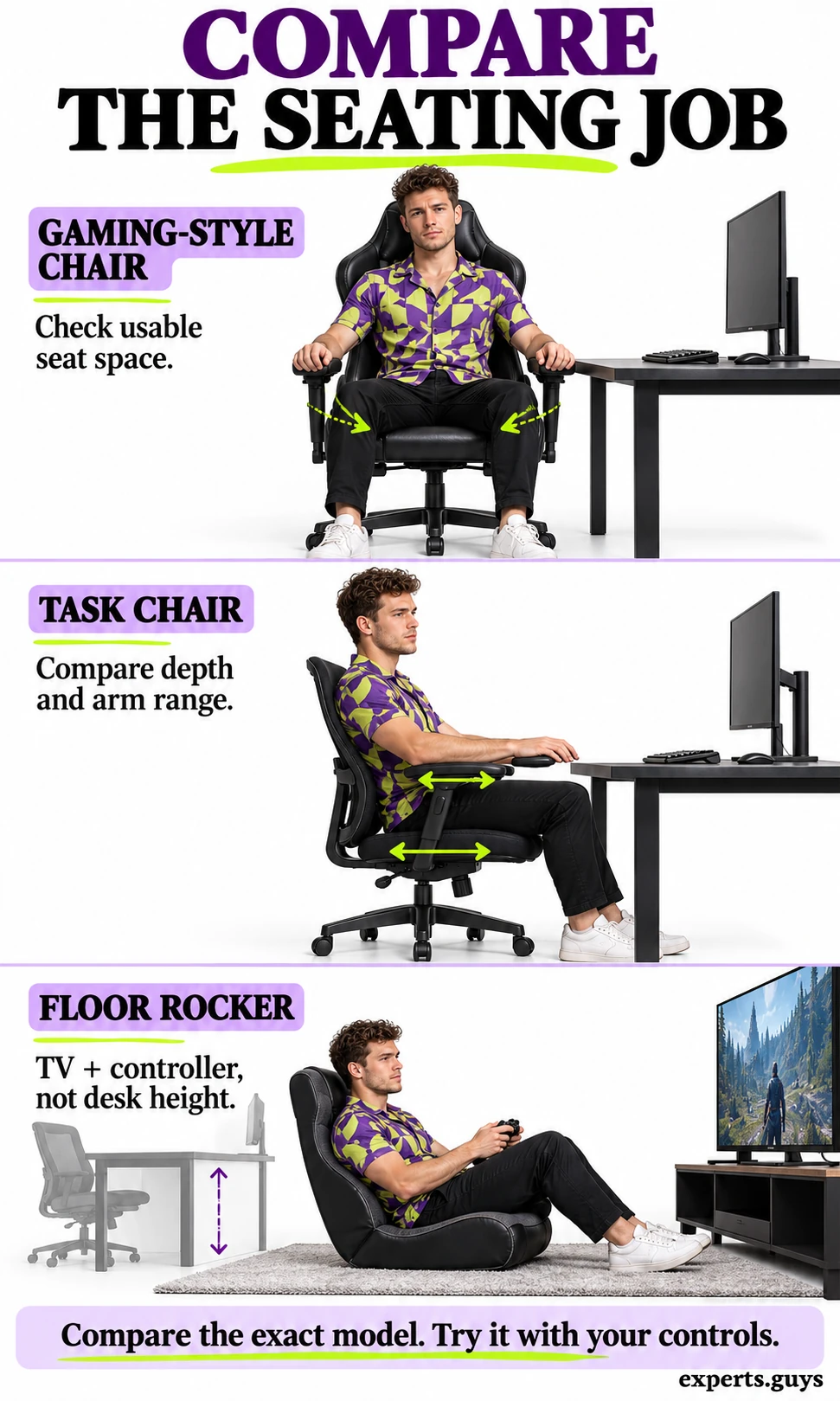
A practical spending order is fit first, useful adjustment second, then materials and appearance. Built-in speakers, vibration, stitching and a dramatic headrest cannot compensate for a seat that prevents back contact or arms that hold you away from the desk.
How do you check whether a chair fits your body?
Check three contacts in order: the seat under you, the floor or footrest under your feet, and the backrest behind you. Use your normal footwear and a stable, intact chair within its stated load rating. For operating and repair instructions, follow your chair model’s manual; mechanisms and adjustment steps vary. These checks adapt established workstation guidance to a gaming setup. They help expose a mismatch, but they are not a clinical assessment or a guarantee of comfort through a long session. Stop a check that causes pain, tingling or numbness; persistent symptoms deserve an individual assessment rather than more forceful adjustment.
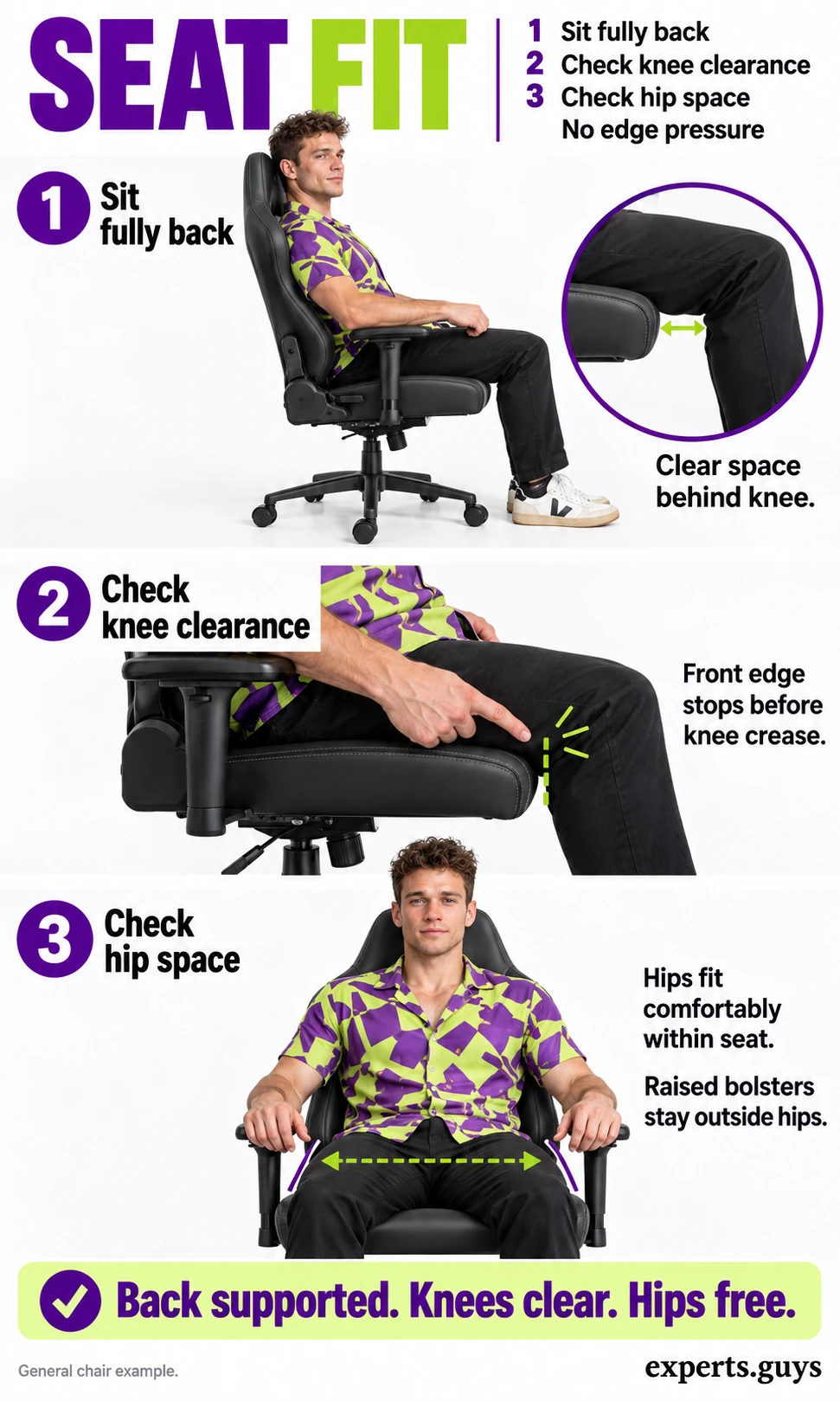
Test 1: Can you sit back without knee or hip pressure?
Begin with seat shape because the other adjustments cannot rescue a fundamentally unsuitable seat. A deep seat can stop a shorter-legged person from reaching the backrest, while raised side bolsters can reduce the usable width well below the outside width shown in a listing.
- Sit fully back. Let your pelvis meet the backrest without sliding forward to escape the front edge. Keep a natural, comfortable posture rather than forcing your back flat.
- Check the front edge. It should stop before the knee crease rather than press into it. If the chair has a seat slide, adjust it according to the manual and sit back again.
- Check the usable width. Your hips should rest on the intended seating surface without being wedged between hard sides. The arm supports also need to come close enough to be useful.
Completion: you can use the backrest while keeping knee clearance and comfortable hip room. As a reference, standard workstation guidance shows a small gap behind the knees; use the absence of pressure and adequate thigh support as practical checks, not a rigid finger-count contest. Easier option: ask a showroom assistant to operate the seat slide while you concentrate on the contact points. If the shallowest setting still blocks back contact, compare another seat depth.
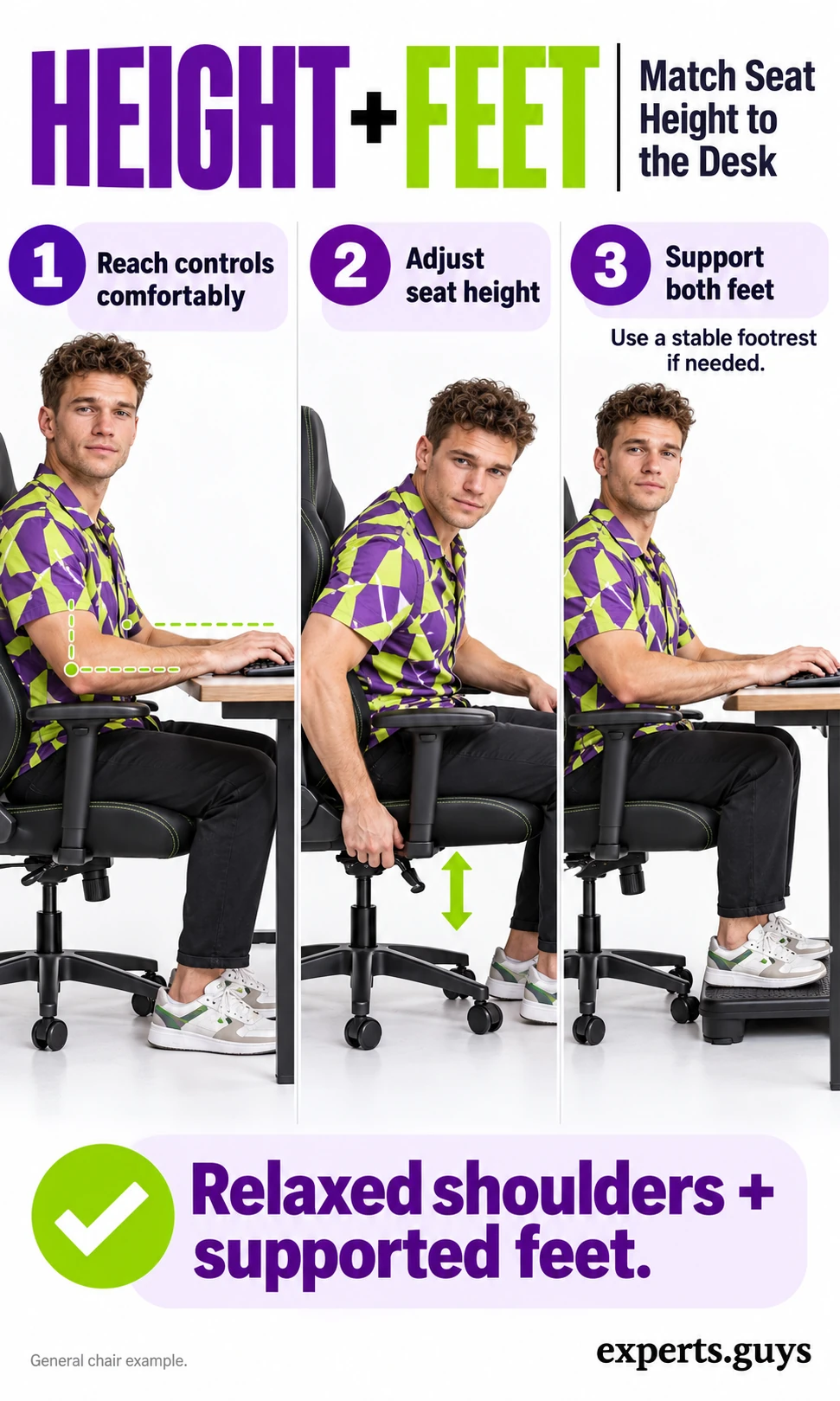
Test 2: Can your feet and hands both have support?
A fixed desk creates a two-ended problem: lowering the chair may help your feet but put the keyboard too high, while raising the chair may ease reach but leave your feet hanging. Solve those contacts together instead of accepting one uncomfortable end as inevitable.
- Bring your hands to the controls. Sit back and let your shoulders settle. Check whether the keyboard and mouse are near a comfortable elbow level rather than requiring a shrug.
- Adjust seat height. Use the manual’s method to find a position that allows comfortable control access. Recheck the seat edge after changing height.
- Support both feet. If the desk requires a higher seat, try a stable footrest large enough for both feet. Do not balance your feet on an unstable stack or a narrow caster spoke.
Completion: you have relaxed control access and a dependable surface under both feet. A stable footrest is a setup adaptation, not proof that the chair itself is too large. Easier option: have someone adjust the footrest while you remain seated. If the desk traps your thighs or the chair cannot reach a workable height, changing the chair alone may not solve the desk geometry.
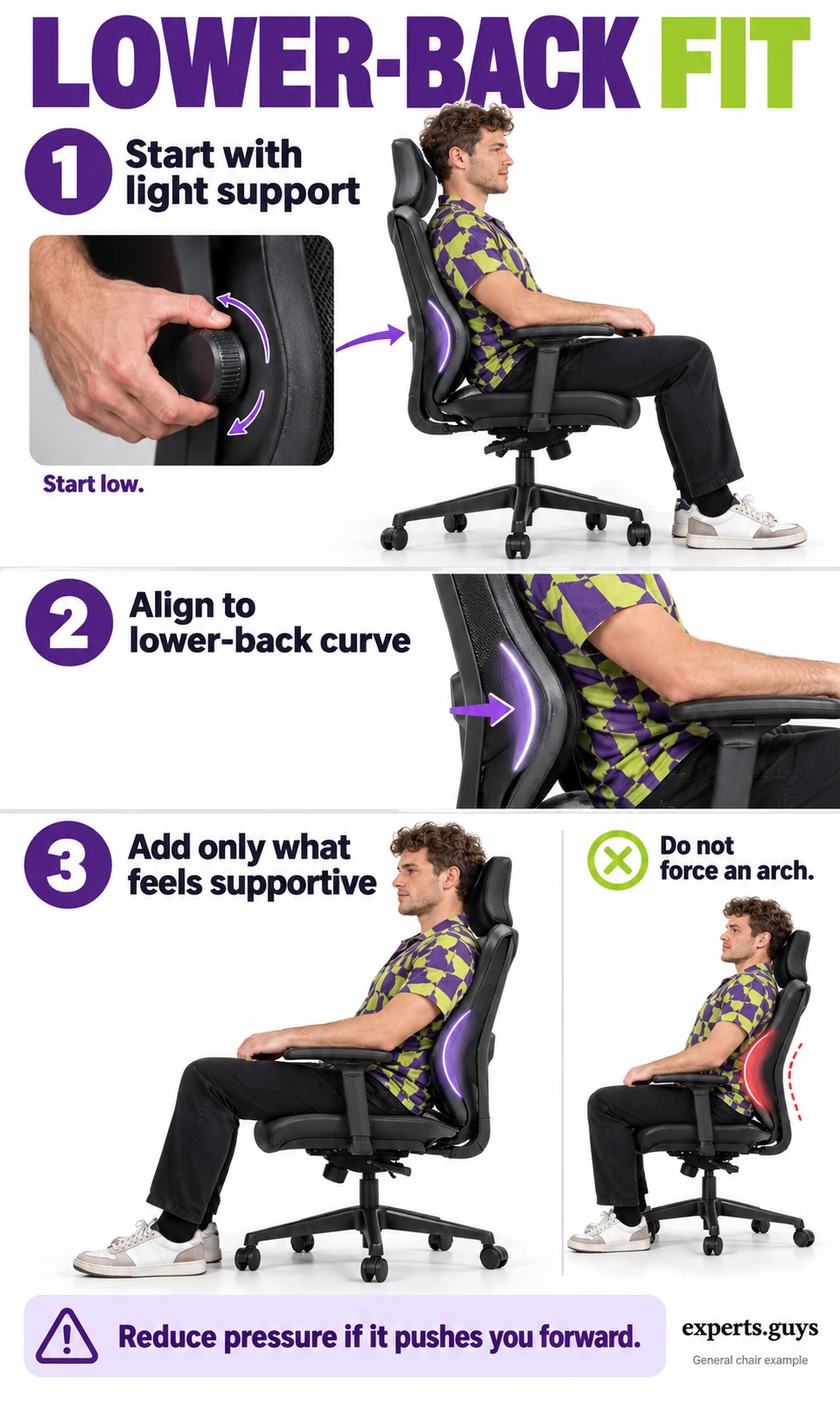
Test 3: Does lumbar support meet your back or push it?
Lumbar support is useful only at a suitable location and pressure. Turning a dial to its strongest setting can make support feel more noticeable while making the fit worse. Chairs with a separate lumbar pad and chairs that reshape the whole backrest need different controls.
- Start lightly. Reduce an adjustable lumbar bulge to a gentle setting using the manual, then sit fully back.
- Find the contact. Where height adjustment exists, place the support around your natural lower-back curve, not against the ribs or directly into the pelvis.
- Add only what helps. Increase support in small changes, then relax against the backrest. Reduce it if it pushes you forward or forces an exaggerated arch.
Completion: the backrest meets you without a hard pressure point or a forced posture. Easier option: leave support light while a showroom assistant identifies the adjustment; do not reach awkwardly behind the chair. A fixed curve that consistently presses the wrong place is a shape mismatch, not a reason to keep tightening. The practical takeaway is to compare contact location as well as the number of adjustment dials.
How do you test the chair with your desk and controls?
Run the chair through the movements you actually use. A static showroom pose misses armrest collisions, broad mouse sweeps and the change in eye line when you recline with a controller. Keep your normal control positions as the starting point; the aim is to expose friction before paying for styling.
The relationship between mouse placement and reach helps explain why the whole setup matters. A chair can feel supportive on its own and still leave your arm reaching away from your body when paired with a particular desk.
- Keyboard and mouse: prioritise desk approach, unobstructed arm movement and a mouse close enough to use comfortably.
- Controller: prioritise supported arms, supported feet and a comfortable sight line from your chosen recline.
- Mixed work and play: check both positions; an adjustment that fixes one position must not make the other unusable.
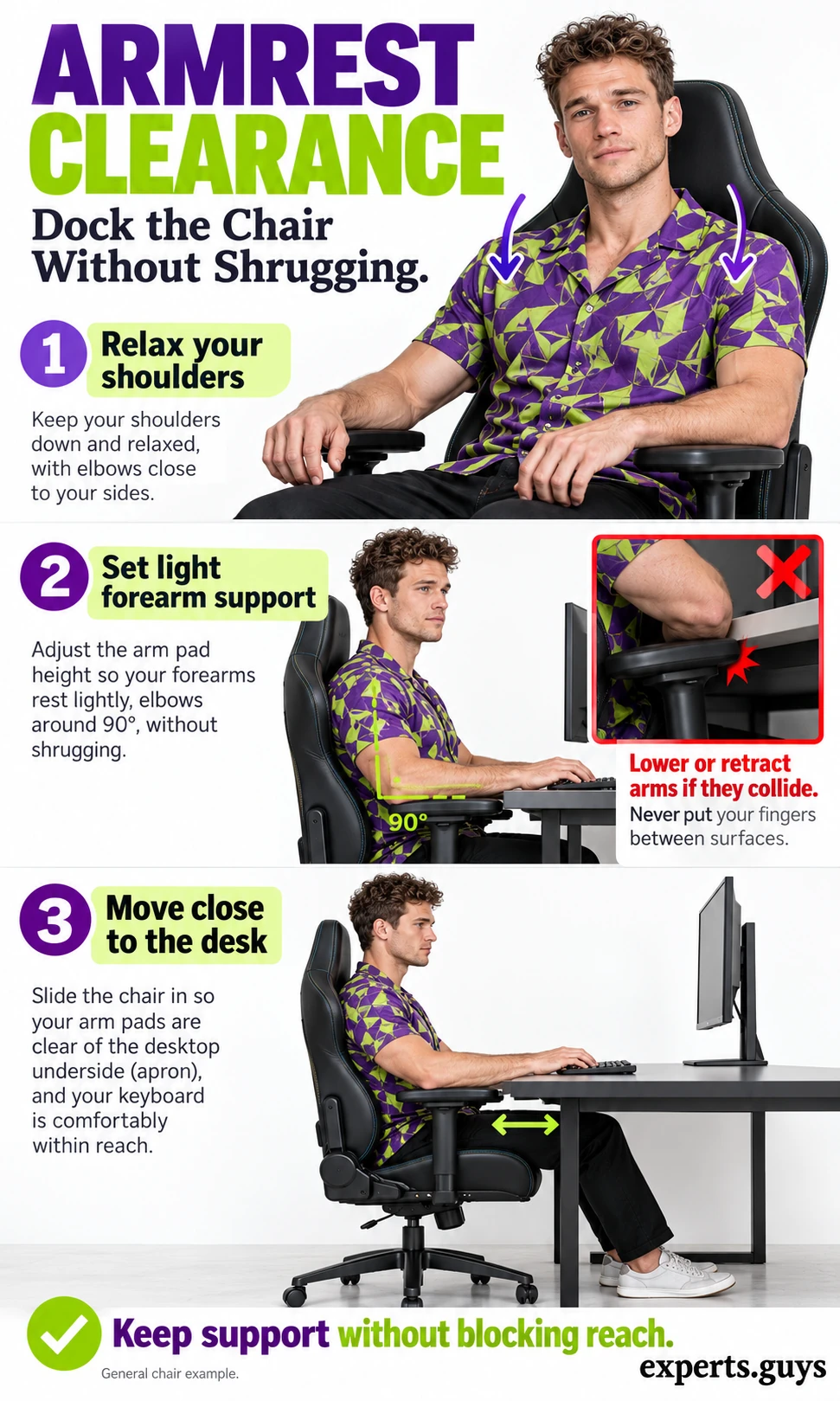
Test 4: Can the chair dock without armrest collision?
An arm pad that hits the desktop can stop the chair before your body reaches a useful position. Lowering the whole chair to clear the pad can then recreate the high-keyboard problem. Check the armrest’s own movement before changing seat height.
- Relax your shoulders. Let your upper arms hang comfortably rather than lifting them to meet the pads.
- Set light forearm contact. Adjust pad height, width or position where those settings exist. Avoid a hard edge pressing into the elbow.
- Approach the desk. Move close enough to reach the controls comfortably without trapping fingers. If pads collide, lower or retract them according to the manual and repeat the approach.
Completion: the chair reaches your working position without an arm pad forcing you back. Easier option: ask someone to watch the clearance from the side while you move slowly. If minimum pad height still blocks access, compare a different arm geometry; remove parts only if the manufacturer explicitly permits it. You do not need armrests raised just because the chair includes them.
Test 5: Does the chair let you use your normal mouse range?
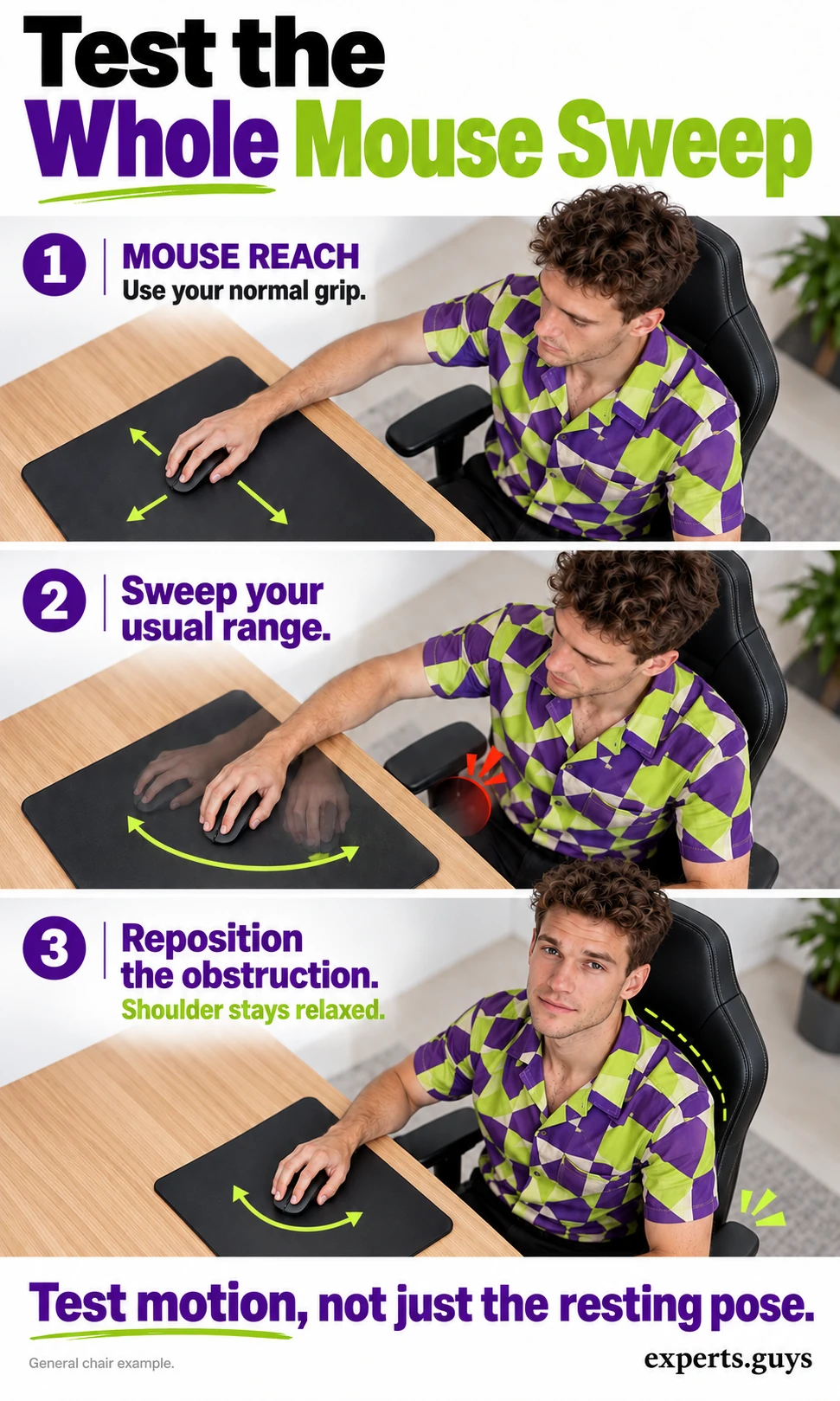
A mouse position can look fine until you make a larger movement. The useful test is your own range on the surface you normally use, not somebody else’s sensitivity setting or a claim that one elbow position improves aim.
- Use your usual grip and position. Sit in the supported setup you have just established.
- Sweep through your normal range. Move the mouse slowly across the area you actually need. Notice any arm-pad collision, awkward reaching or hard pressure at the desk edge.
- Clear the obstruction. Retract or reposition the arm pad if available, or bring the mouse closer without crowding the keyboard. Repeat the same movement to see whether the interference is gone.
Completion: your normal mouse movement is clear without a raised shoulder or a hard contact point. Easier option: check the movement slowly without launching a game. If the pad cannot move out of the way while preserving useful support, that chair-and-desk combination may be unsuitable. This tests access, not accuracy, and does not require changing your game settings.
Test 6: Can you recline with a controller and still see comfortably?
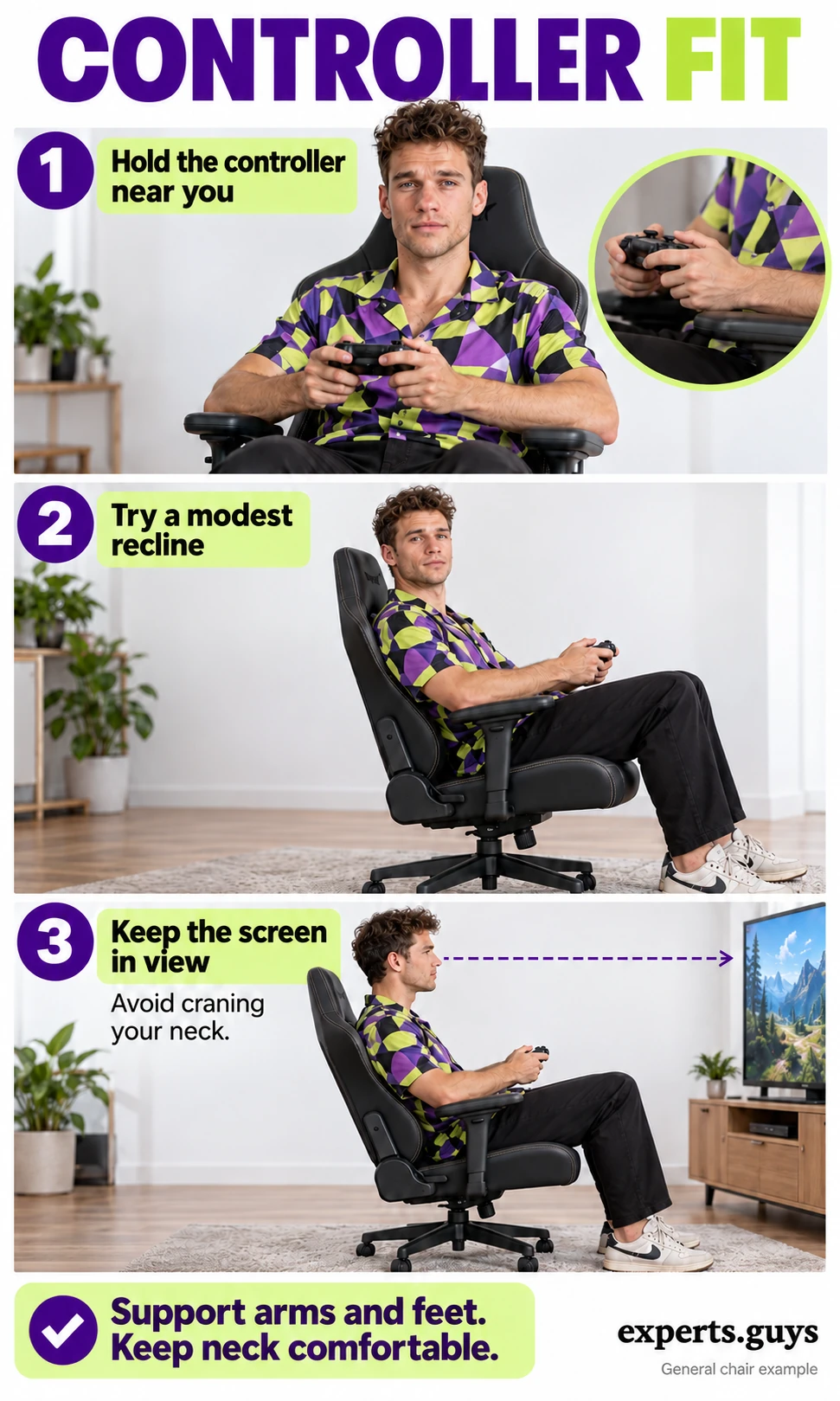
Controller play can use a different chair position from keyboard play because your hands do not need to remain over a desktop. Recline also changes your eye line, however, so the largest advertised angle is not automatically the most useful position.
- Bring the controller close. Hold it where your upper arms can remain relaxed and your forearms have comfortable support.
- Try a modest recline. Stay within the manual’s operating limits and keep your feet supported. Do not jump straight to the maximum angle.
- Check the screen. Look at the actual display from this position. If you must crane your neck or slide away from the backrest to see, reduce the recline or use another supported position.
Completion: the controls, arm support, feet and screen work together. Easier option: remain upright and check controller reach before trying recline. A television mounted high on a wall can remain a poor match regardless of the chair. Do not treat a head pillow that pushes your head forward as a fix for the wrong sight line.
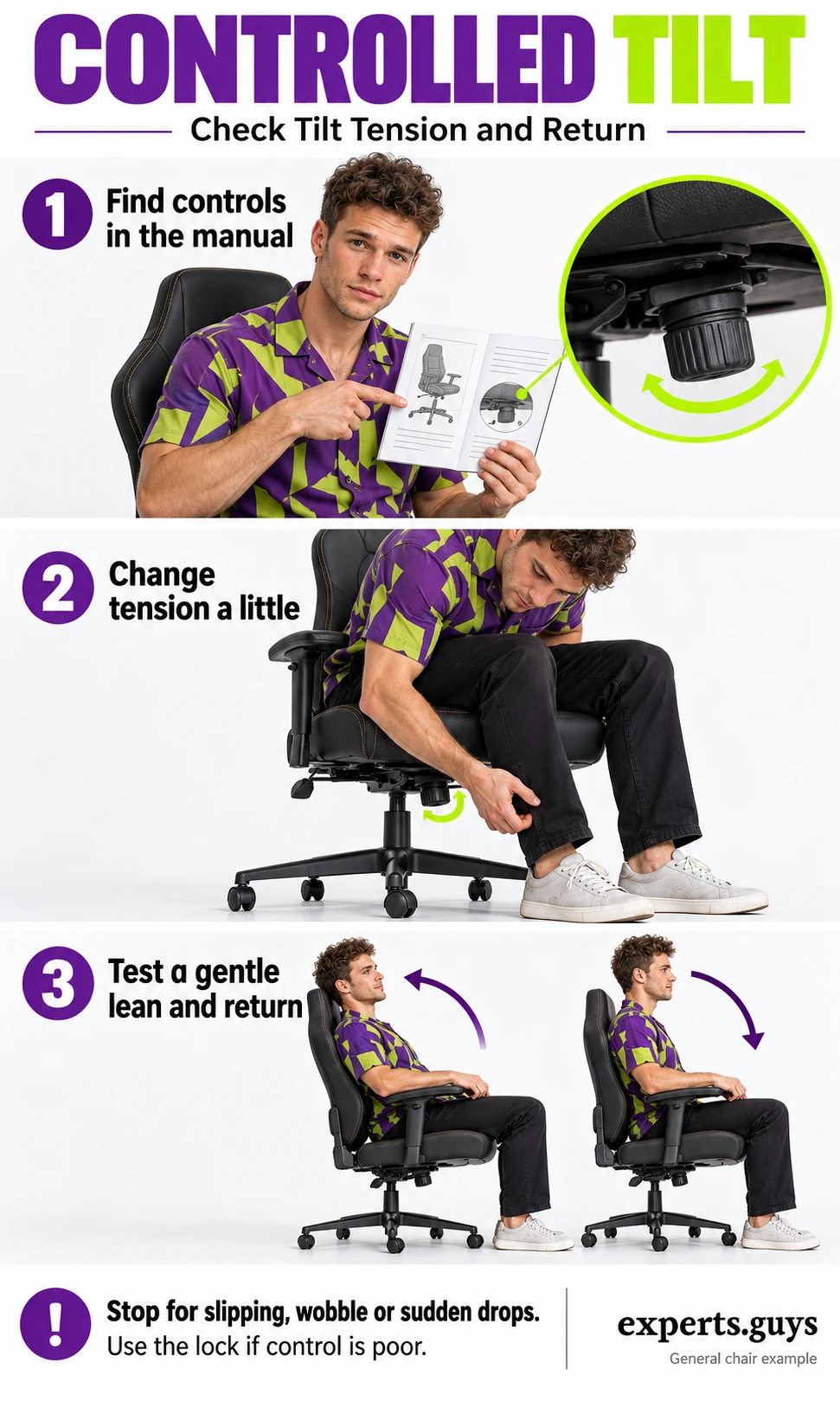
Test 7: Is tilt controlled in both directions?
Backrest recline, whole-chair tilt, tension and tilt locking are different functions. Tension changes resistance; a lock or limiter restricts movement. A chair may offer one without the other, so identify the mechanism rather than guessing from the lever’s location.
- Identify the control in the manual. Check whether you are changing tilt tension, a limiter or backrest recline. Do not dismantle the mechanism.
- Change tension a little. Follow the model’s instructions, keeping clear of moving parts. Adjustment direction and whether you should unload the chair vary by design.
- Test gently. With feet supported, try a small lean and a controlled return. If movement is difficult to control, use the approved lock setting; stop using the chair for slipping, wobble, cracking or sudden height drops.
Completion: movement feels controlled in both directions, or the approved locked position is comfortable and stable. Easier option: keep the chair locked while an assistant demonstrates its controls. Some mechanisms have automatic rather than manual tension; follow that design’s instructions. The model-specific adjustment demonstrations show why a general diagram cannot replace the correct manual.
When should you adjust, compare another chair or return it?
Adjust when the chair has the range you need and a small setting change removes the problem. Compare another design when the required depth, height, width or arm position is unavailable. Consider the return route when a correctly assembled, properly adjusted chair still fails its intended use; do not wait until the deadline while hoping pressure will become acceptable.
| What you find | What it means | Useful next decision |
|---|---|---|
| Reach improves when an arm pad retracts | A setup obstruction had a workable adjustment. | Use that position, then repeat the mouse or controller check. |
| Knee pressure remains at minimum seat depth | The available seat geometry may not suit your proportions. | Compare a shallower seat or a different depth range. |
| The chair feels warm despite a cooling claim | Material claims do not establish comfort in your room. | Compare the actual covering in similar conditions and check the return deadline. |
| Movement slips, the base wobbles or height drops suddenly | This is not an ordinary comfort preference. | Stop using the chair and contact the seller or manufacturer for the appropriate repair or return route. |
| No contact or reach problem remains | There is no clear fit failure to solve. | Keep the chair if it meets your needs; an upgrade can remain optional. |
Materials are part of the comparison, not a substitute for it. Mesh, woven fabric and coated upholstery have different feel and cleaning requirements, but the material name alone cannot establish durability, temperature comfort or suitability. Compare the actual model’s covering, care guidance and warranty exclusions rather than assuming that every finish performs the same.
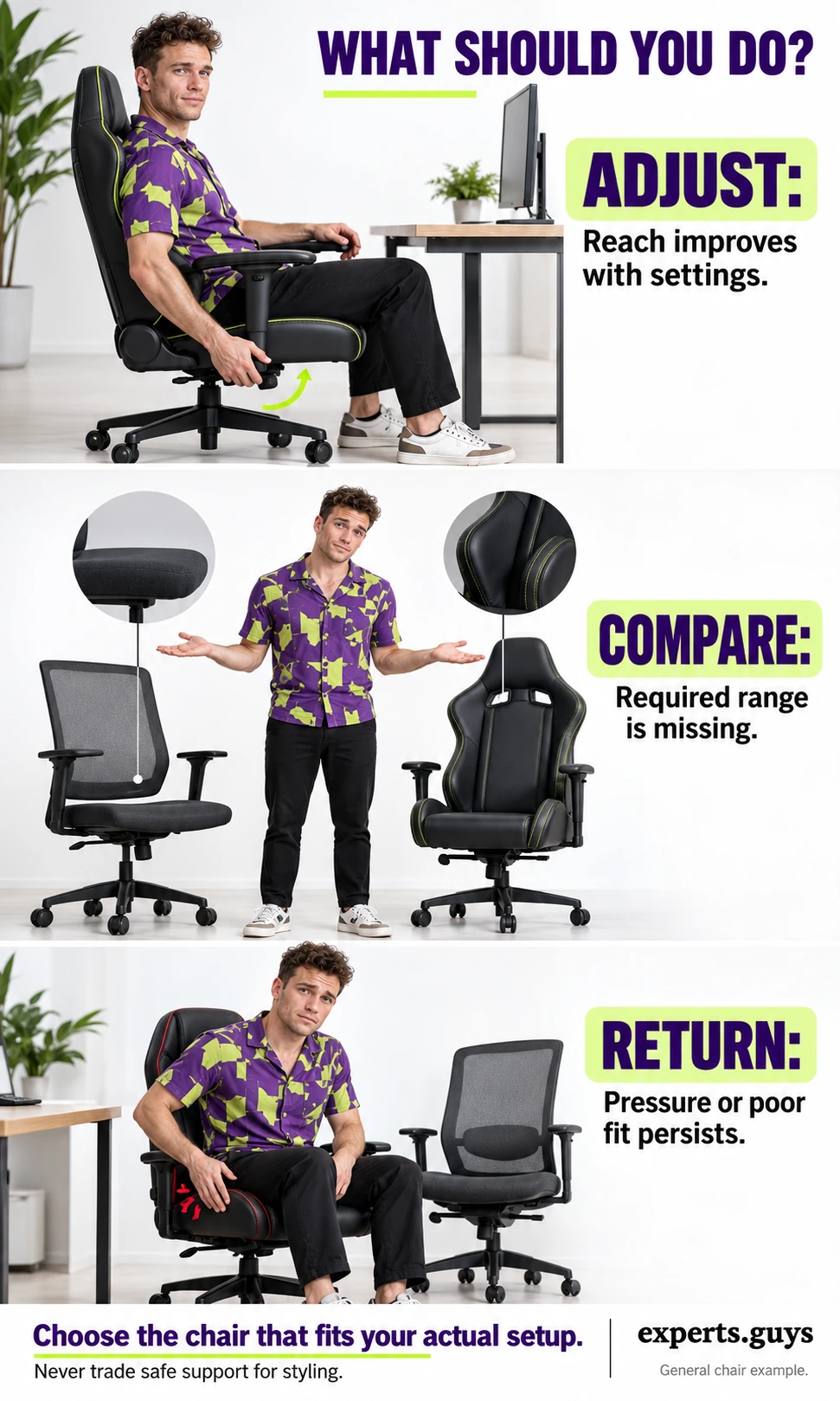
For example, a shorter player with a fixed desk might find a workable seat height and footrest combination, yet still fail the minimum-depth check. That illustrative result points toward a shallower seat, not a more expensive version of the same shape. A broad-shouldered player who mainly uses a controller may instead care more about arm-pad range and backrest contact than how closely the chair tucks under a desk.
Before ordering, confirm the final delivered price, exact size, load rating, return period, return-shipping responsibility, packaging requirements and any deductions for an assembled return. Also check which components the warranty covers and how service is arranged in your country. These terms vary by seller and can matter more than a temporary discount.
Choose the next fit check
If one problem remains, use Chair Fit Check to select the matching physical test and decide whether adjustment is still worth trying. It gives a next action from your observation; it does not rank brands, diagnose pain or store your answers.
YOUR NEXT PHYSICAL CHECK
Chair Fit Check
Choose the problem that remains. Get one useful adjustment or comparison step.
Use the article’s physical tests first if you can. This check does not diagnose pain, rank products or save your answers.
No fit score or comfort guarantee. Follow your model’s manual. Stop a check that causes pain, tingling or numbness.
Frequently asked questions
Does a gaming chair improve aim or reaction time?
A chair is not a demonstrated shortcut to better aim or faster reactions. Appropriate support can remove a comfort or access problem, but game results also depend on skills, practice, settings and other conditions. Choose the chair for a clear fit benefit rather than a promised performance gain.
Should I buy the largest gaming-chair size I can afford?
No. More width or a higher load rating can come with a deeper seat, different arm spacing or a higher minimum seat height. Choose a size that meets the manufacturer’s limits and still lets you use the backrest, support your feet and reach the controls comfortably.
Is 4D armrest adjustment always better than 2D?
More adjustment directions can offer more ways to fit a setup, but the usable range and pad shape matter. An armrest with several directions can still sit too high, too wide or too far forward for a particular person and desk. Check the positions you need rather than choosing by the label alone.
Are floor rockers suitable for a gaming desk?
Usually they serve a different setup. A low floor rocker may suit a television and controller, but its height may leave a standard desktop and keyboard out of comfortable reach. Treat it as a separate seating category rather than a direct substitute for an adjustable desk chair.
How long should I try a new chair before deciding?
There is no universal break-in period that makes a poor fit acceptable. Check the return deadline first and try normal tasks within it. Do not keep sitting through pain, numbness or obvious edge pressure in the hope that an unsuitable seat will become the right size.
Can a good chair replace breaks from sitting?
No. A supportive chair still leaves you sitting, and one fixed position is not a requirement for good fit. Allow normal position changes and breaks appropriate to your activity and needs rather than using comfort as a reason to remain seated indefinitely.
Choose the mismatch you can actually remove
Shortlist by the fit requirement your present chair cannot meet, then test the replacement with your real controls. Keep the model that offers usable support and clear movement within its operating limits; if your current chair already does that, there may be no practical reason to replace it.
Once the seating works, choose the play experience you want: our games for couples guide covers shared play rather than hardware claims. A different game or a better-matched control position can be a more relevant next choice than another chair upgrade.